Welcome to
The Phoenix Project
A nonprofit wellness space offering education, support, and conscious community rooted in lived experience.
People helping people
Our Approach:
A Four-Part Journey Back to Self

Because awareness is where everything begins.
It starts with a real conversation — human to human, heart to heart.
No pressure. No fixing. Just presence, curiosity, and those quiet moments of “Oh… that makes sense.”
We share what we’ve lived and keep learning — from growing food and conscious cooking to understanding the link between breath, emotion, and vitality.
It’s not about perfection — it’s about feeling empowered, one gentle insight at a time.
Because knowledge means nothing if it just stays in your head.
This is where it becomes real — not in a book, but in your kitchen, your breath, your everyday rhythm.
We invite you to choose what resonates. From advanced therapies to ancestral practices, everything we offer is here to support your way — not someone else’s program.
Whether you’re moving through burnout, grief, or simply longing to feel like yourself again, we walk beside you — step by step, breath by breath.
Because integration isn’t about big breakthroughs. It’s about small, steady choices that say, “I’m worth showing up for.”
Because growth isn’t rushed — it’s rooted.
We help you build gentle rhythms and everyday rituals that support your whole self — body, mind, and soul.
We offer ongoing care through mentorship, workshops, and a heartfelt community that holds you through every season.
Staying soft. Staying connected. Staying nourished, even on the hard days.
And as you grow, you naturally pass it on — to your children, your partner, or a stranger who needs the same hope you once did.

Because we’re not meant to do this alone.
Come home to a circle where you are witnessed, celebrated, and deeply welcome.
In our community, you don’t have to earn your place — you already belong.
As you find your rhythm, something shifts. Your presence becomes a ripple — touching those around you in quiet, meaningful ways.
This is where community begins to bloom. Where shared stories become strength.
And where we remind each other, again and again: you were never alone.
PRACTICES AND THERAPIES
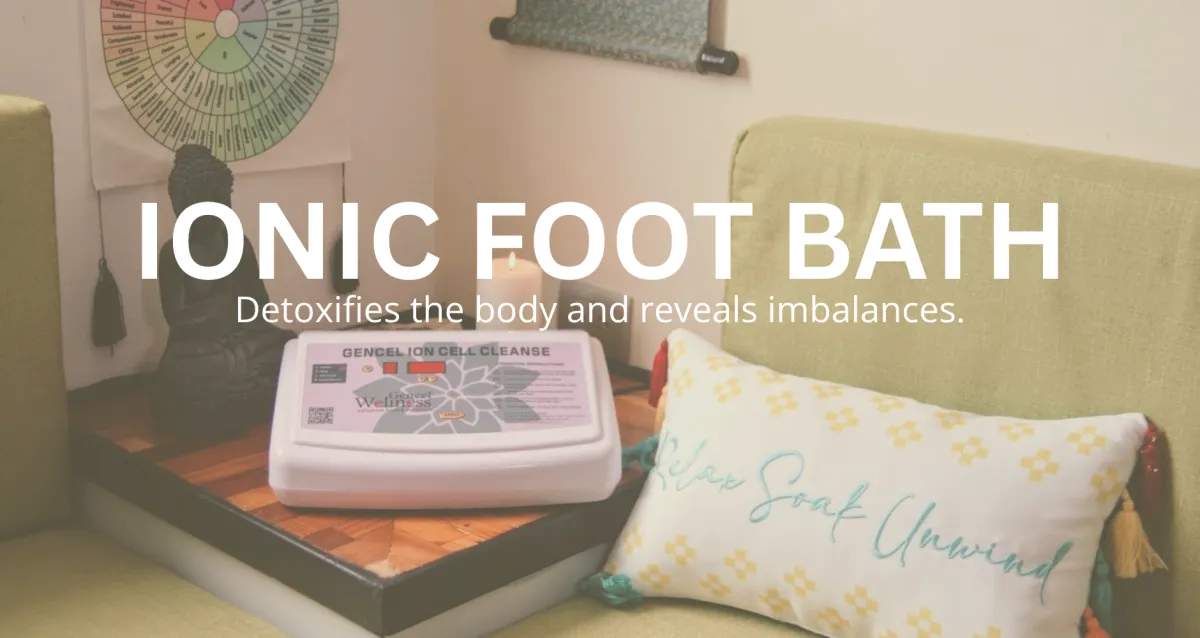
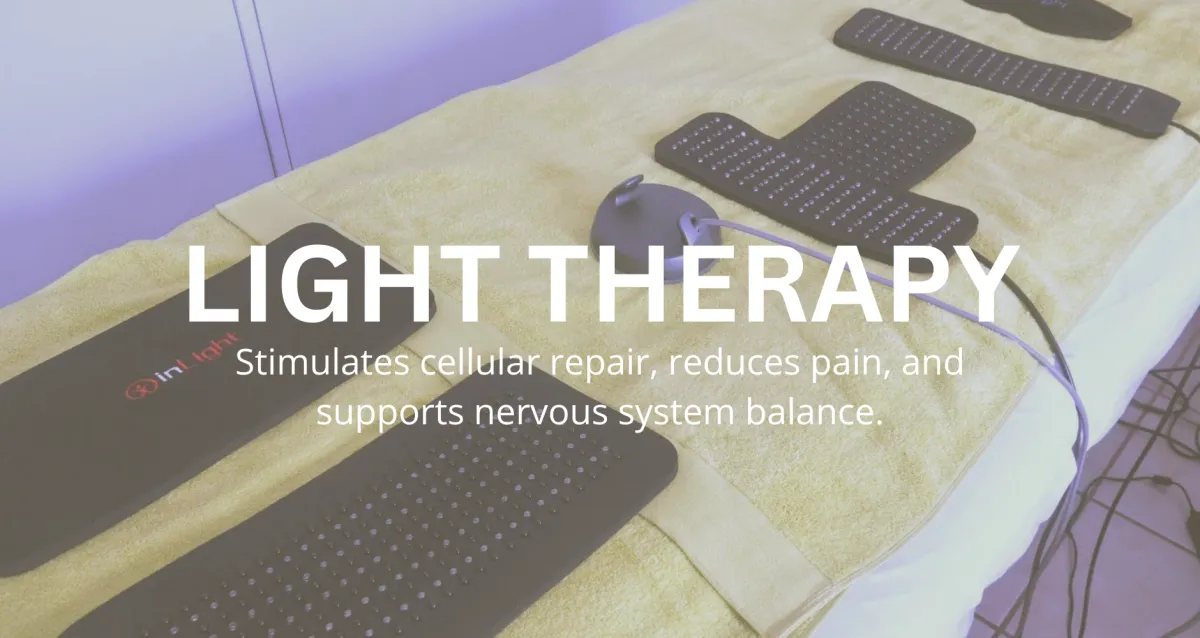
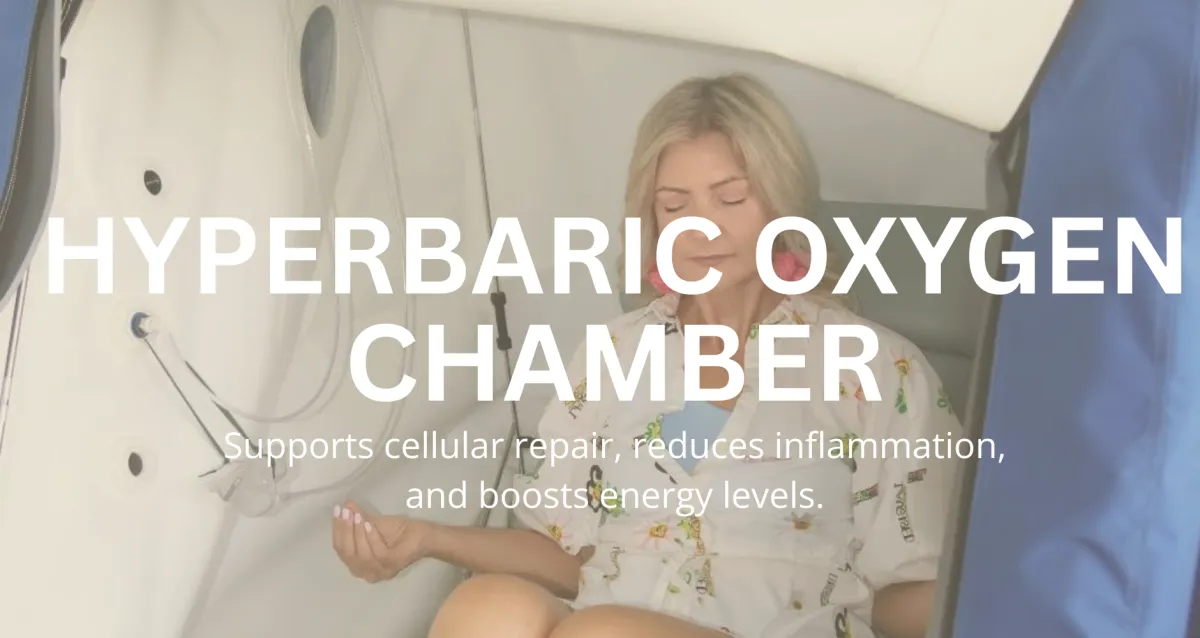
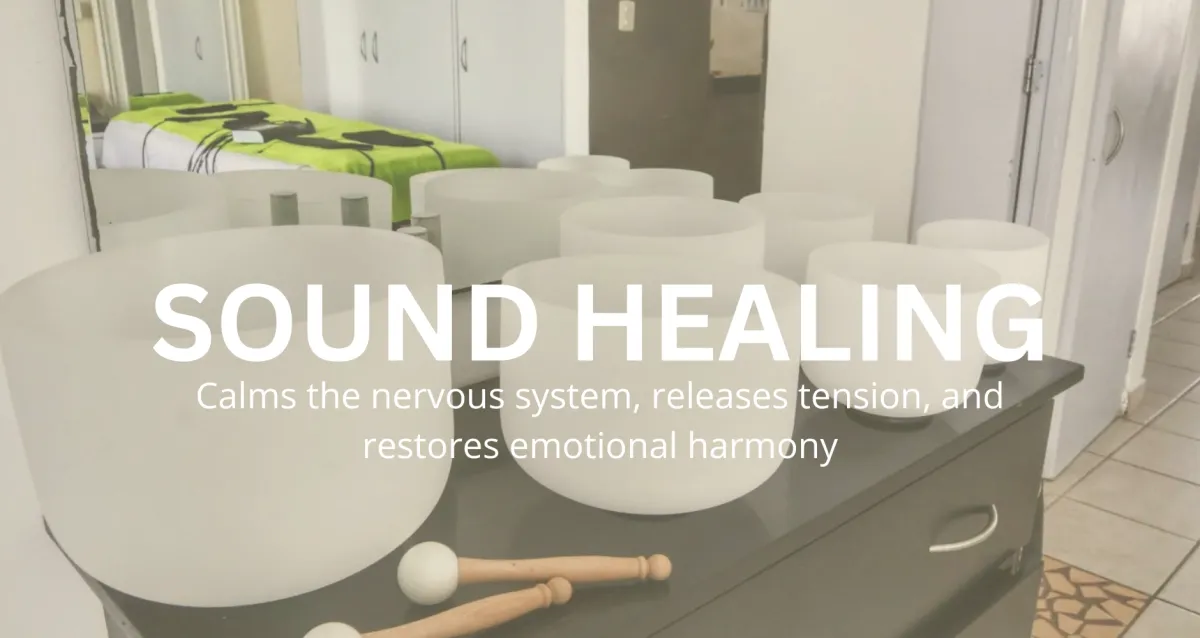
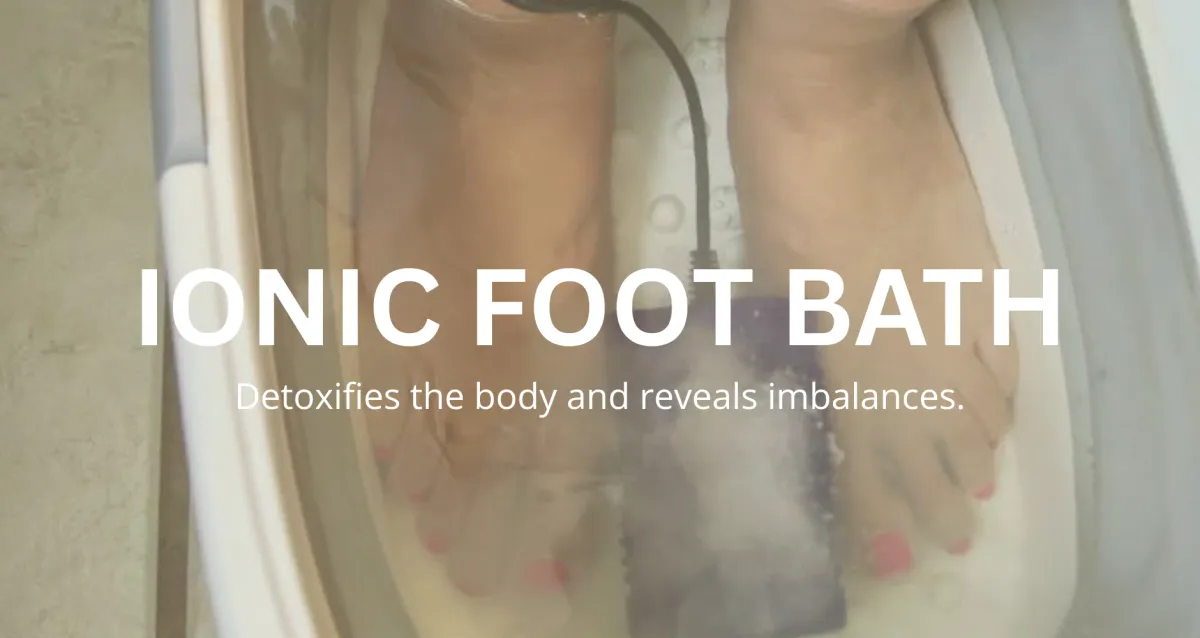
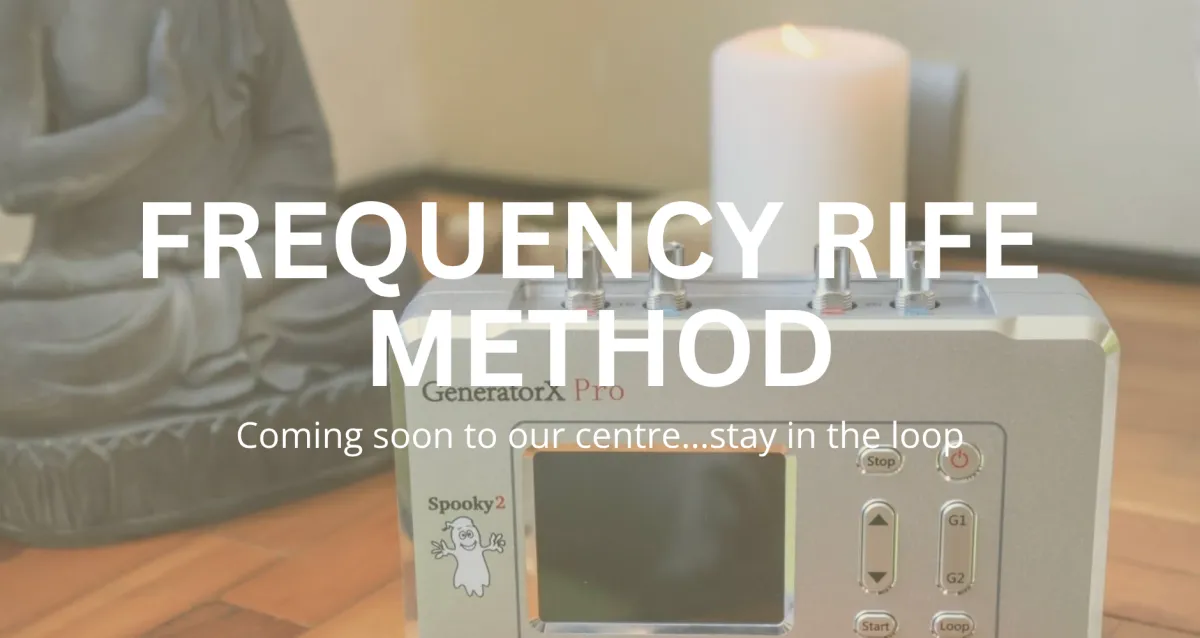
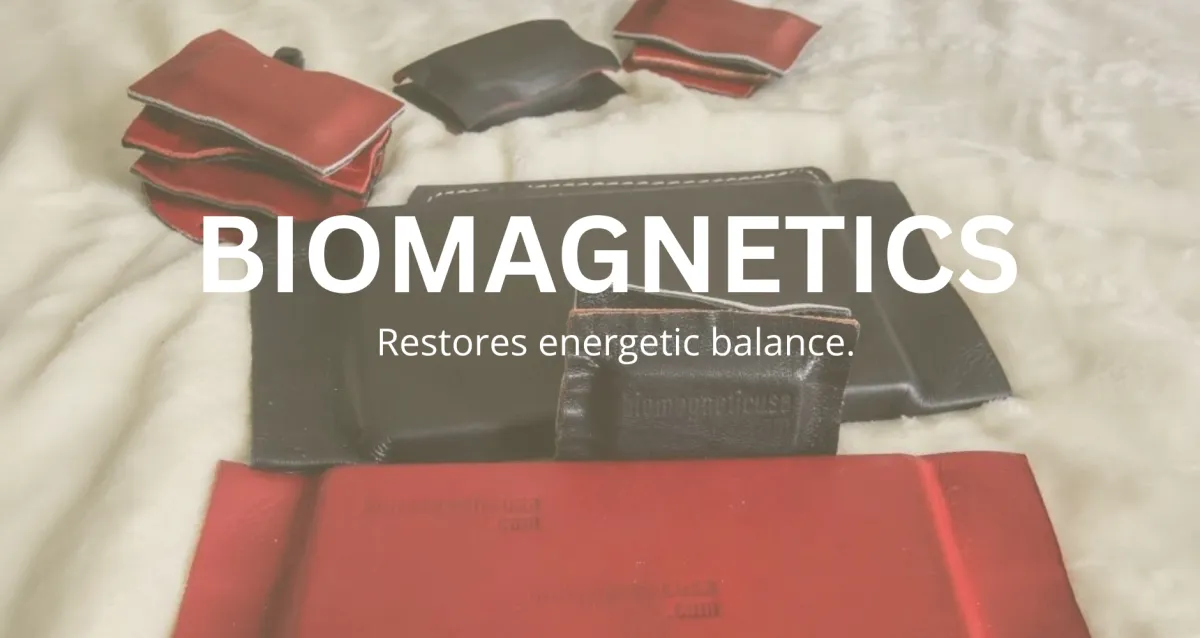
CHARITIES WE SUPPORT
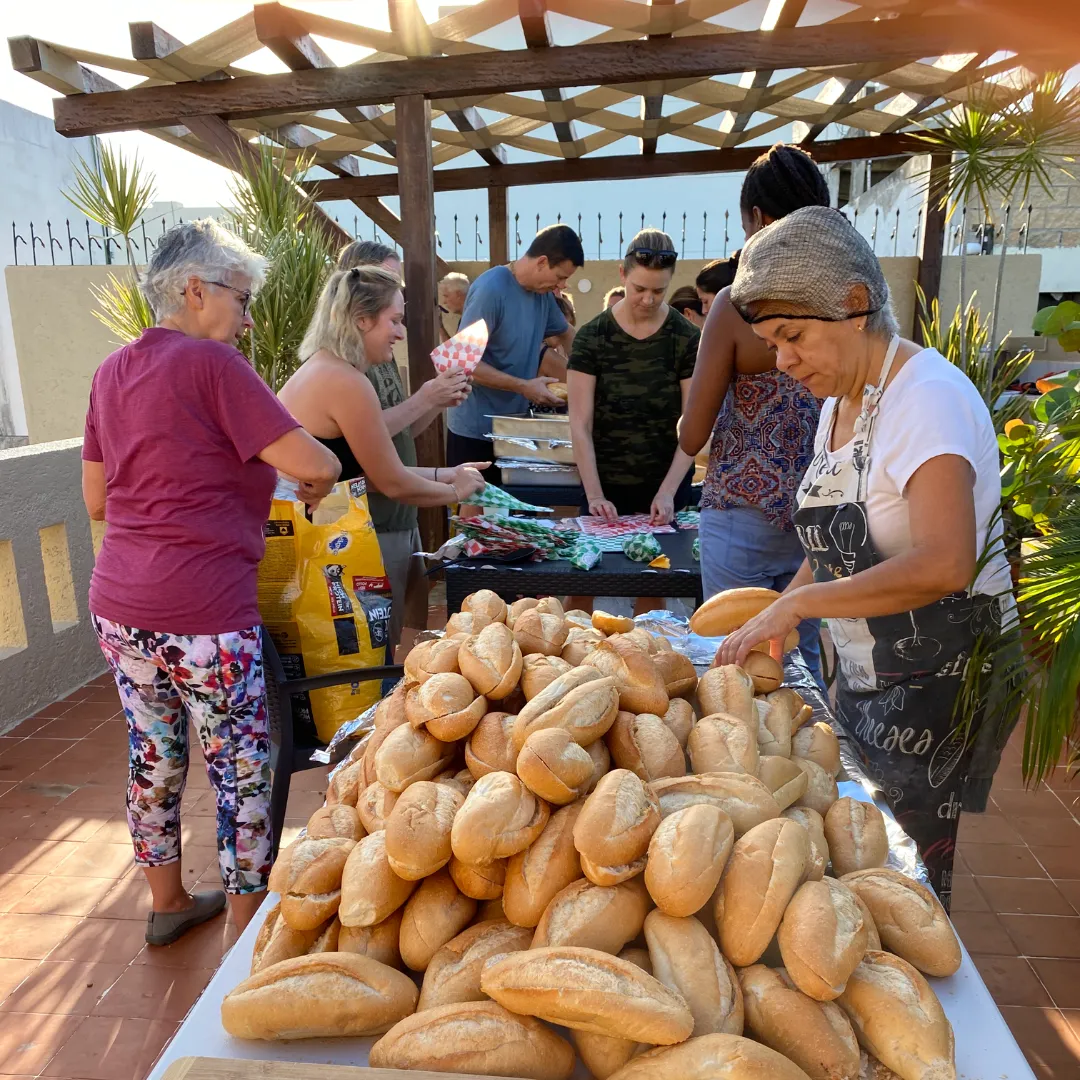
Comida para Todes

Animal Care

Learn about all our projects...
Get the Help You Need Today!
“Your Journey Starts Here”
How We Walk With You at The Phoenix Project
We know how overwhelming it can feel to start. That’s why the first step is simple: we get to know you.
You’ll begin by meeting with Dan, the founder of The Phoenix Project — not in a formal session, but in an honest, human conversation. Dan’s walked this path himself, and he’s here to share his story, his wisdom, and his heart — so you can begin to shape your own.Together, you’ll explore:
Where you are right nowWhat’s calling for your attentionWhat’s possible for your body, mind, and spiritAnd what small, meaningful steps can help you begin again
There’s no pressure. No judgment. Just presence.From there, we gently guide you through a journey of self-discovery, self-awareness, and reconnection — supported by modern tools, ancient wisdom, and a community that truly cares.
Click the button below to get started:
Your health journey matters to us.
Let us support you every step of the way.
PRACTICES AND THERAPIES


About Our
Community
At The Phoenix Project, we believe in the power of community and the strength found in
People Helping People.
Apply to Volunteer in our events or projects
Frequently Asked Questions
Answers To Frequently Asked Questions
What is The Phoenix Project?
The Phoenix Project is a holistic wellness initiative dedicated to empowering individuals and fostering community support.
How did The Phoenix Project start?
The Phoenix Project was founded by Daniel Patrick Matis after he experienced a life-altering stroke, inspiring his dedication to service and holistic wellness.
What services does The Phoenix Project offer?
We provide educational programs, support for various challenges, and holistic wellness resources.
Who can benefit from The Phoenix Project's services?
Anyone seeking support for holistic wellness, education, or facing challenges like trauma, depression, or health issues.
How can I get involved with The Phoenix Project?
You can volunteer, donate, or participate in our programs to support our mission.
Is The Phoenix Project a nonprofit organization?
Yes, we operate as a nonprofit organization dedicated to making a positive impact.
Are donations to The Phoenix Project tax-deductible?
Yes, donations to The Phoenix Project are tax-deductible as we are a registered nonprofit.
How can I donate to The Phoenix Project?
You can donate through our website or contact us directly for more information.
How does The Phoenix Project support individuals facing trauma, depression, or other mental health challenges?
We offer counseling, support groups, and holistic therapies to help individuals navigate their challenges.
Can The Phoenix Project help someone who is struggling with a specific health issue?
Yes, we provide support and resources for various health issues, including cancer, diabetes, and obesity.
Contact Us
+1 (941) 292-8465
Playa del Carmen, México.
1180 8th Avenue West , Suite 240
Palmetto, FL 34221, USA